
- Method 1: List your voices within a browser
- Method 2: List your voices using Python
- Side note: How to make an ElevenLabs custom voice
Following my basic ElevenLabs API tutorial, a couple of people have asked how to use custom voices with the API.
Fortunately using a custom voice is the same as using a premade voice – you just need to provide the ID of your custom voice to the ElevenLabs API in your code. But how do you find that voice ID? There are two ways.
Method 1: List your voices within a browser
This is the easiest way.
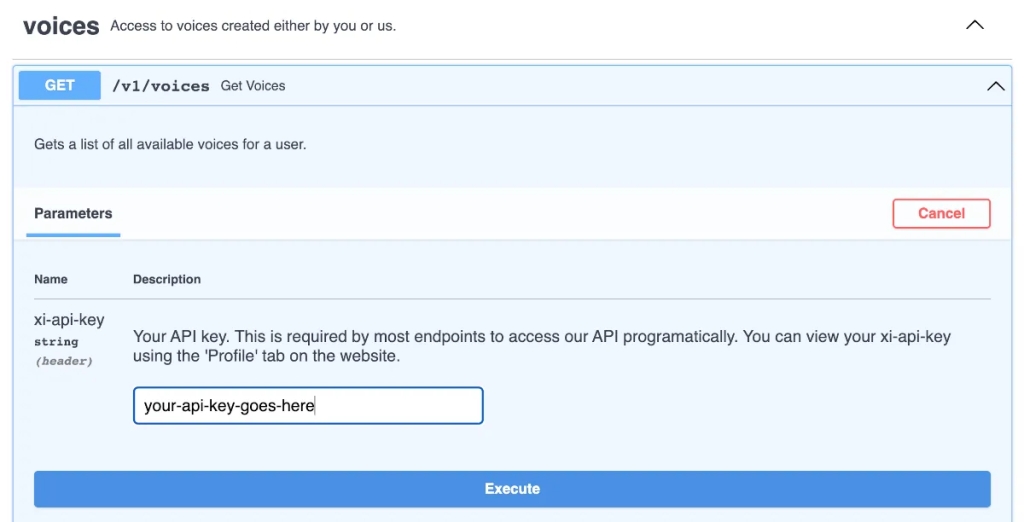
- Go to the “voices” section of the ElevenLabs API docs.
- Click the “Try it out” button.
- Put your API key in the “xi-api-key” box and press “Execute”.
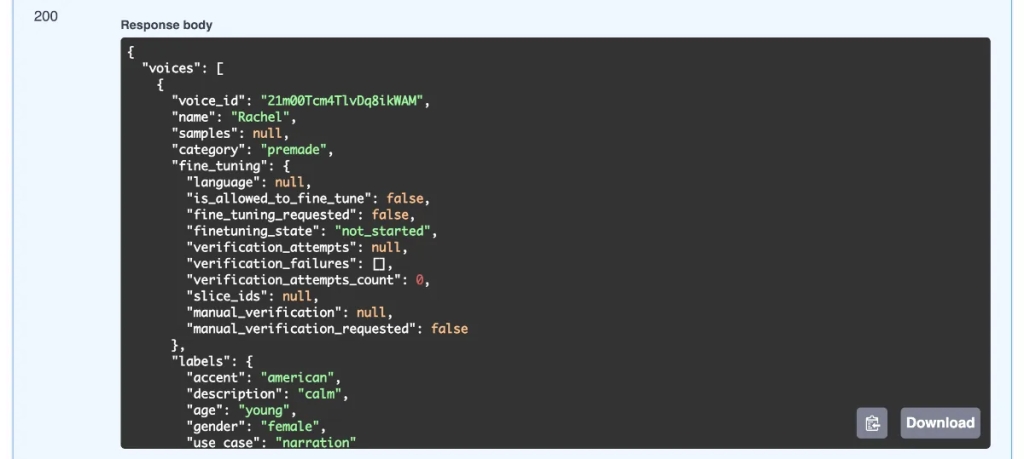
The full list of all voices you have access to will be displayed in the “Response body” section. Custom voices are listed at the end so scroll down to find them. Each one has a voice ID which you can use in your program or app.
Method 2: List your voices using Python
First you need to set your API key if you want to get your custom voices. After importing the elevenlabs Python package, you could set your API key like this:
import elevenlabs

elevenlabs.set_api_key("your-api-key")
But that’s not recommended because your API key is visible in your code, which other people could potentially see. It’s better to put your API key in a plain text .env file like this:
ELEVENLABS_API_KEY = your-api-key
That file is automatically hidden (see my tutorial about how to hide API keys) but you can access it from your code with the dotenv and os libraries.
import os
from dotenv import load_dotenv
import elevenlabs

# Set the ElevenLabs API key.
load_dotenv()
api_key = os.getenv("ELEVENLABS_API_KEY")

elevenlabs.set_api_key(api_key)
Much safer! Now all you do is call the voices() function in the ElevenLabs API and assign it to a variable.
# Fetch the list of voices
voices = elevenlabs.voices()
The voices variable now contains the full list of voices available to you, although it’s a lot of text so quite hard to read. I like to print each voice separately, with a new line after each one for easy-to-read formatting.
for voice in voices:
    print(voice)
    print()
Here’s the full code for fetching your voice list from the ElevenLabs API:
import os
from dotenv import load_dotenv
import elevenlabs


# Set the ElevenLabs API key.
load_dotenv()
api_key = os.getenv("ELEVENLABS_API_KEY")

elevenlabs.set_api_key(api_key)


# Fetch the list of voices
voices = elevenlabs.voices()
for voice in voices:
    print(voice)
    print()
The output for one of the voices:
voice_id='Mq4nLeok5dWualGzu7Gp'
name='Valentino' category='generated'
description='A great voice with depth. The voice is deep with a great accent,and works well for meditations.'
labels={'accent': 'british', 'descriptive': 'meditative', 'age': 'old', 'gender': 'male', 'use_case': 'narrative_story'}
samples=None
design=None
preview_url='https://storage.googleapis.com/eleven-public-prod/V1v8kM9HmRaYVmeRecsxhzFCkhG3/voices/Mq4nLeok5dWualGzu7Gp/e2a9b184-de58-4bb4-ad81-c52d5ffb8e03.mp3'
settings=None
Like the first method, any custom voices are at the end of the complete list. You can identify them because their category is “generated” rather than “premade”. Each voice’s data includes an ID, which is what you’ll need for using it in your program or app.
Side note: How to make an ElevenLabs custom voice
If you’re reading this wondering where these custom voices come from, they’re easy to make on the ElevenLabs website. You can either clone, copy or create a new voice.
Copy a generated voice
This is the easiest way – simply go to the ElevenLabs “Voice Library” and browse the list of voices created by people in the community.
When you find a voice you like, click “Add to VoiceLab”, then click “Add Voice” and you’re done! The voice is now in your account’s voice list so you can use it in the ElevenLabs API.
Create a new voice
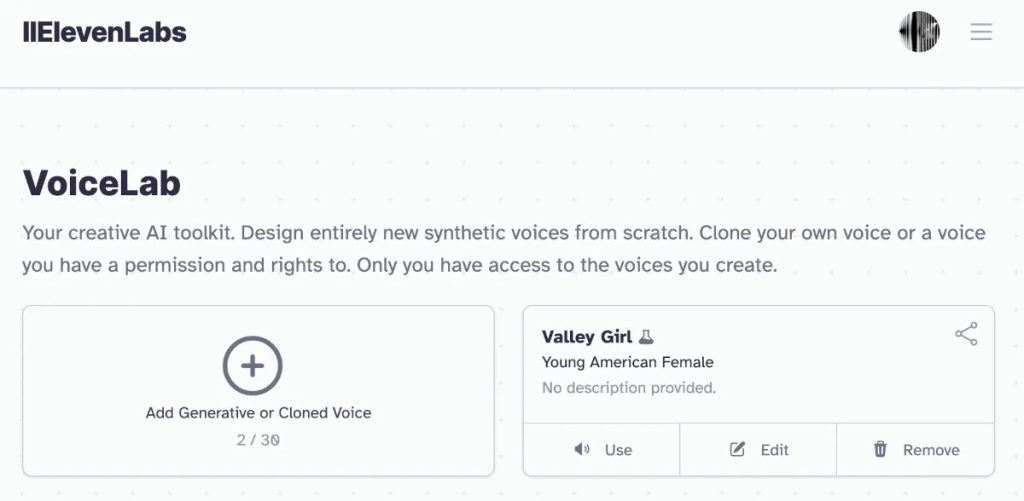
In the ElevenLabs “VoiceLab” click the “Add Generative or Cloned Voice” button. You’ll need to record your voice if you want to clone it, but it’s also possible to create a voice from scratch by choosing the “Voice Design” option. This displays several settings you can adjust – gender, age, accent and accent strength. To hear a sample of how the voice sounds, click “Generate”, and then “Use Voice” when you’re satisfied.
Now you can add a name for your voice, labels to help you identify it, and optionally a description. Click “Create Voice” and it will be added to your account’s voice list, ready for your to use in the API.

 PuppyCoding
Leave a comment